01 — CAPTURE
Say everything first. Organize it second.
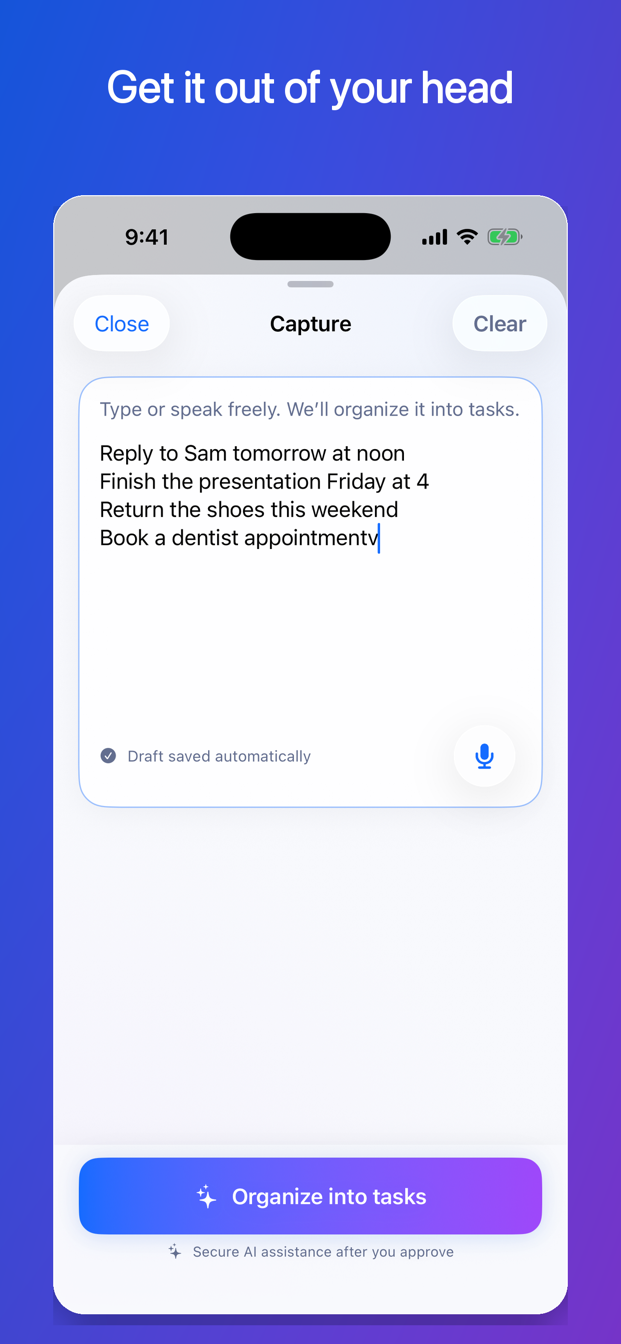
Tap Add and type or speak what is on your mind. You can enter one task or several thoughts together. Save a task manually, or choose Organize to prepare editable task drafts.
Reply to Sam tomorrow at noon, finish my slides Friday at four, return the shoes Sunday, and book a dentist appointment.
02 — REVIEW
Confirm what the app understood.
FirstNudge separates the example into four drafts. It can propose a noon deadline for the reply and a date-only deadline for returning the shoes. “Friday at four” is unclear, so the app asks whether you mean 4:00 a.m. or 4:00 p.m. The dentist task can remain undated. Review titles, dates, and estimated time, then save only what is correct.
Suggestions are drafts, not facts. You decide what is saved.
03 — CHOOSE
Tell FirstNudge what you can handle now.
Open Now and choose the time you have—5, 10, 20, or 30+ minutes. Select your current energy if that is helpful. FirstNudge looks at eligible tasks on your device and offers one action with a short reason, such as “Due tomorrow” or “Fits 10 minutes.”
The Now recommendation does not consume an assisted action.
04 — MAKE IT SMALLER
Reduce the starting line when the task is still too large.
If “Reply to Sam” still feels difficult, Make Smaller might suggest: “Open Sam’s message and draft the first sentence—about two minutes.” You can accept it, ask for another suggestion, or write your own step. The noon deadline stays attached to the parent task.
A new Make Smaller request uses one assisted action. Retrying the same failed request does not count twice.
05 — BEGIN
Start a focus session from the action.
Use a countdown or stopwatch, pause if you are interrupted, and add time if you want to continue. When the timer ends, FirstNudge asks what happened. Only you can mark the task or step complete.
06 — PLAN
Choose a work time without changing the deadline.
If you choose to work on the reply tomorrow at 1:00 p.m., FirstNudge can warn that the planned attempt falls after the noon deadline. You can change the work time or keep it intentionally. The actual deadline remains noon either way.
What works without assisted actions
The app remains useful without a server request.
Manual task creation and editing, local search, task filters, the Now recommendation, focus sessions, simple recurrence, local reminders, calendar availability, and the basic widget do not use assisted actions. An internet connection is needed for assisted Capture organization and Make Smaller requests.
Assisted-action explanation
What counts as one assisted action?
One new server-assisted Capture organization or Make Smaller request reserves one action. A brain dump that produces several task drafts still counts as one action. Retrying the same failed request with the same request ID does not consume another action. Free includes 10 assisted actions per UTC calendar month; Pro includes 150 total per UTC calendar month.