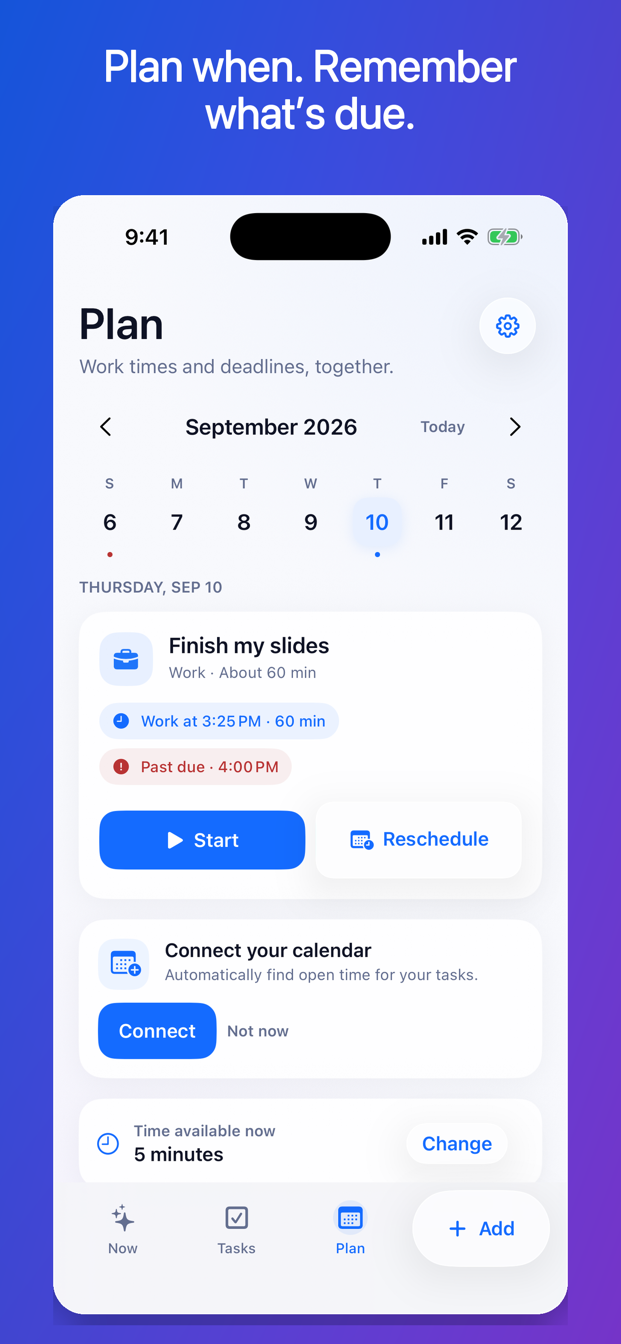
If you postpone the task, what should move? Usually the planned work time. If the same field also stores the real deadline, one tap can rewrite reality.
Use three separate concepts:
- Deadline: when the task must be finished.
- Planned work time: when you intend to work on it.
- Reminder: when you want a notification.
A deadline records an external constraint
A deadline should represent a fact or commitment:
- The application closes Friday at 5:00 p.m.
- The paper is due Monday.
- The return window ends September 20.
- Sam needs the answer tomorrow at noon.
Some deadlines include an exact time. Others are date only. Do not invent 9:00 a.m. for “due Monday” unless that is the actual rule.
Changing a deadline should require a deliberate edit because the outside commitment changed—not because you did not work when planned.
A planned work time records an intention
A work time is your current plan:
- Draft the introduction Thursday at 3:00 p.m.
- Review the slides Friday morning.
- Return the shoes Saturday afternoon.
Plans should be easy to change. Their flexibility is useful only if changing them does not move the underlying deadline.
One task can have several work sessions before one deadline. A 90-minute presentation might need three planned blocks: outline, draft, and review.
A reminder requests attention
A reminder is a prompt, not the work and not the deadline:
- Remind me 15 minutes before the planned session.
- Remind me one day before the return deadline.
- Check in tomorrow morning if I have not completed the task.
Notifications can be delayed or suppressed by operating-system settings. A critical deadline needs more than one fragile alert.
Example: the dangerous one-date system
Task: Submit application by Friday at 5:00 p.m.
On Monday, you plan to work Tuesday at 7:00 p.m. If the app stores Tuesday at 7:00 as “the date,” you may forget the real Friday deadline. On Tuesday, you postpone until Saturday. If the app moves the only date to Saturday, it now shows a plan that is already too late and may no longer show the true deadline at all.
The correct structure is:
- Deadline: Friday at 5:00 p.m.
- Planned work time: Tuesday at 7:00 p.m.
- Reminder: Tuesday at 6:45 p.m.
If Tuesday fails, move the planned work time to Wednesday. The Friday deadline stays fixed and visible.
Warn when the plan crosses the deadline
A planner should not silently prevent every imperfect choice. Sometimes a user intentionally schedules a later review, follow-up, or damage-control step. But the conflict should be visible.
Useful warning:
This work time is after the Friday 5:00 p.m. deadline. Change the work time or keep it intentionally.
The system should preserve both choices and make the risk clear.
Plan backward from the deadline
For a task with meaningful uncertainty:
- Record the true deadline.
- Identify the last safe review or submission time.
- Estimate the work, including setup and checking.
- Add buffer for interruptions or missing information.
- Schedule one or more work sessions before the safe point.
- Place reminders near the work sessions and, if useful, before the deadline.
Example:
- True deadline: Friday at 5:00 p.m.
- Personal submission target: Friday at 3:00 p.m.
- Final review: Friday at 1:00 p.m.
- Draft session: Thursday at 6:00 p.m.
- Research session: Wednesday at 4:00 p.m.
Only the first line is the actual deadline. The others are your plan.
What to do when you fall behind
Do not move the deadline to make the calendar look clean. Instead:
- Keep the deadline visible.
- Update the remaining estimate.
- Choose the smallest action that reduces risk.
- Reschedule the next work attempt.
- Contact the affected person early if the deadline may not be met.
- Record any approved extension as a new confirmed deadline.
An overdue label can be uncomfortable, but a false future date is less useful.
How FirstNudge handles dates
FirstNudge stores deadlines, planned attempts, and reminders separately. Using Later changes when you plan to return; it does not silently change the true deadline. The Plan view distinguishes confirmed deadlines from planned work times. If a proposed work slot falls after the deadline, FirstNudge can warn you before applying it.
With Pro and calendar permission, calendar-aware planning can suggest possible work slots based on availability read on your device. You review suggestions before they are applied, and FirstNudge does not write events to an external calendar in this release.
Deadline-planning checklist
- Record only confirmed deadlines.
- Preserve date-only deadlines as date only.
- Schedule work separately from what is due.
- Add reminders without treating them as guarantees.
- Plan review and buffer before a hard deadline.
- Warn when a work time falls after the deadline.
- Move the plan when life changes; move the deadline only when the obligation changes.
Frequently asked questions
Is a start date the same as a planned work time?
It can be, but “start date” may imply an all-day property rather than a specific work session. The important point is to keep it separate from the deadline.
What if the deadline is only a date?
Store it as a date-only deadline unless the source provides a time. Your personal plan can still include specific work times before that date ends.
Should I create several reminders for an important deadline?
Use enough reminders to be useful without creating notification noise. For a critical obligation, also use another reliable system and check the source of the deadline directly.
Reschedule the attempt. Preserve the truth.
Plan work without moving deadlines in FirstNudge